
If you’re looking to delete one of your classroom groups, please follow the below steps.
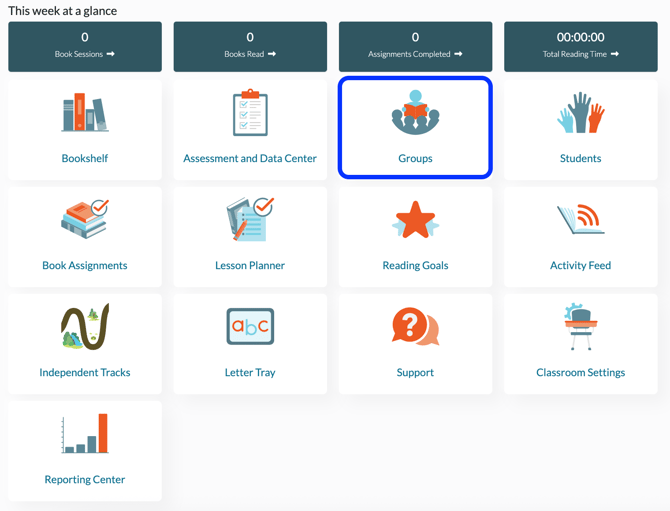
1. From your dashboard, click on Groups.
2. Click on the Red X button next to the group you wish to delete.
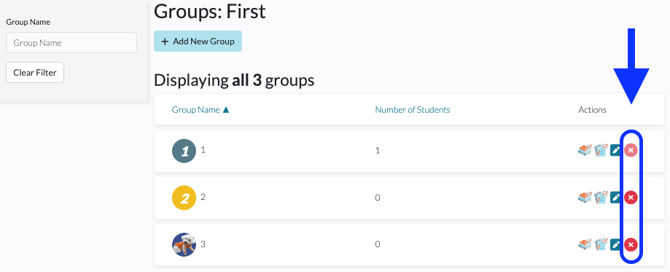
Note: You cannot delete a group that contains students. If a Red X appears faded, that group currently has students in it. You must first remove the students.
To Remove Students
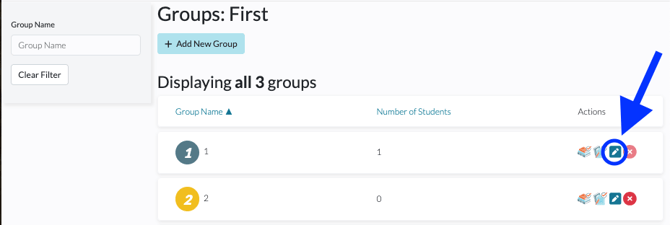
1. Click on the Edit Icon.
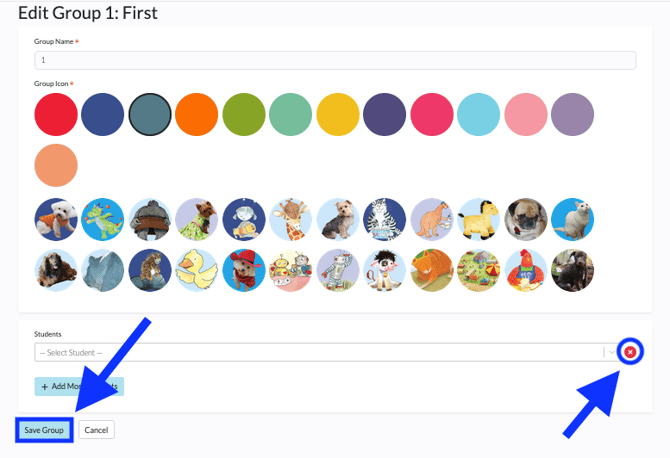
2. To remove a student, click on the Red X button to the right of their name. Once all students are removed, Save to return to Groups Index and proceed to delete Group.
For information on changing a student's group, please see How Do I Change a Student’s Group?